10.1.3 Download and Use Certificates
After issuance, the applicant receives a notification email:

10.1.3.1 Download the PKCS#12
Email verification codes and certificate passwords are different
Email verificationtakes place during the application, before you set the private key password. The emailed code verifies your email address; it is neither thePasswordnor theExport Passwordbelow. When downloading, enter the private key password set during the application inPassword;Export Passwordprotects the exported.p12file.
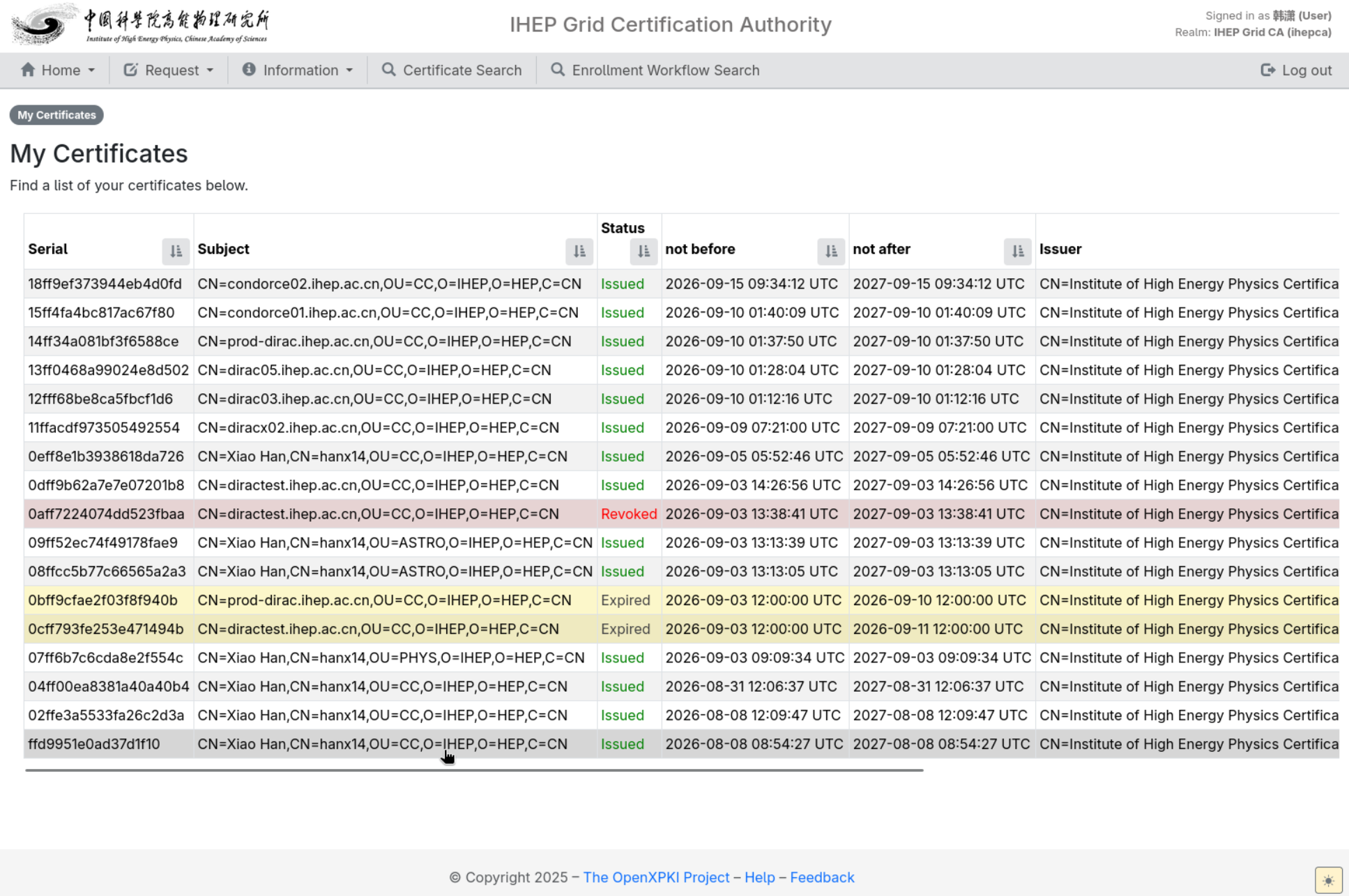
OpenHome → My Certificates:

Click the Subject or serial number of the target certificate to open its details; alternatively, click the link in the issuance email and the system opens the certificate directly:
ClickDownload private key/keystore (PKCS12/PKCS8/Java)in theActionarea (entering via the email link shows this download page directly):

On theSpecify Required Formatpage confirmDownload FormatisPKCS12; enter theprivate key passwordset at application time inPassword; set the password for the exported private key (
.p12) inExport Password(if left empty, the application-time private key password is used):
ClickContinue, then on theSUCCESSpage clickDownloadto download the
.p12file (the download entry is generally no longer shown once you leave the page):


The.p12bundle contains the certificate, the private key and the CA chain; importing it requires theExport Password(or the application-timeprivate key passwordif none was set).Immediatelymove the file out of the browser's public download directory to a protected location and check its permissions; do not leave.p12files in shared/tmp, public download folders, sync drives or world-readable home directories.
No download-private-key Action?
The private keys of user certificates, Robot certificates and host certificates issued through the WebUI are generated by the CA and kept server-side, so the private-key download Action is offered. For host certificates obtained through EST auto renewal or IHEP-2013 migration, the key is generated and kept locally on the target host and the server holds no copy, so there is no such Action. Its absence does not mean the certificate is invalid — usually the key is not kept at the CA, has already been exported, or the certificate came from EST.
10.1.3.2 Export the PEM files needed by Grid
The following commands export the end-entity certificate and the private key from the.p12:
mkdir-p"$HOME/.globus"chmod700"$HOME/.globus"opensslpkcs12-in'/path/to/Xiao Han.p12'-clcerts-nokeys\-out"$HOME/.globus/usercert.pem"opensslpkcs12-in'/path/to/Xiao Han.p12'-nocerts\-out"$HOME/.globus/userkey.pem"chmod600"$HOME/.globus/userkey.pem"chmod644"$HOME/.globus/usercert.pem"The system will ask for theExport Password, and possibly a protection password for the PEM key; if an automated client cannot enter the key password interactively, follow your site's key-protection policy first. Verify locally after export:
opensslx509-in"$HOME/.globus/usercert.pem"-noout\-subject-issuer-dates-extsubjectAltNametest"$(opensslx509-in"$HOME/.globus/usercert.pem"-noout-modulus|opensslsha256)"=\"$(opensslrsa-in"$HOME/.globus/userkey.pem"-noout-modulus|opensslsha256)"\&&echo'certificate and key match'Never send the.p12or the password to others to solve an import problem.
10.1.3.3 Install the personal certificate and use it in the browser
A client identity in a browser requires the certificate plus its private key, i.e. the.p12bundle downloaded above; importing only a.crtor.pempublic certificate does not make it a selectable identity. The import procedure depends on the operating system and the browser.
Certificate storage mechanisms
Different platforms keep client certificates in different places, so understand the differences before importing:
- macOS: the certificate and its private key are stored in a macOS keychain, managed with Keychain Access. Google Chrome, Microsoft Edge and Safari use client certificates from the macOS keychain by default. Chrome and Edge are used as short names below.
- Windows: Chrome and Edge use the Current User Personal certificate store, i.e. the Windows
Personalstore. Edge and Chrome share it, so one import is enough for both. - Firefox: it uses the certificate database (NSS format) of the current profile. Since Firefox 90, however, it can also use client certificates from the system by default on Windows and macOS, so there is no need to import again when the system copy is usable.
- Linux: on most Chromium-based browsers the user-level certificates are held in a user-level NSS database, and the behaviour varies with the distribution, the installation method and the version.
A client identity is not the same as server-side trust
The Chrome Root Store, Microsoft Edge's built-in root store and system trust stores are used to verify server certificates. They are distinct from the client identity store holding your personal certificate and private key. If a certificate chain is incomplete, obtain the new Root CA and Issuing CA certificates from official sources and verify their fingerprints. Configure root trust only where required by the site; do not arbitrarily designate personal or intermediate CA certificates as trust anchors. The target site must also trust the new IHEP CA, and the acceptable-CA list sent by the server affects which certificates the browser offers.
On macOS: Chrome, Edge and Safari
- Use Spotlight to open Keychain Access, not the Passwords app.
- Select the login keychain in the sidebar. Personal certificates are normally installed in the current user's login keychain; the System keychain is not required.
- Choose File → Import Items, select the downloaded
.p12file and choose login as the destination keychain. Alternatively, drag the file into the window with the login keychain selected. - Enter the password. This is the Export Password set when the
.p12was downloaded; if no separate export password was set at download time, use the private key password given at application time. It is not your machine login password. - Select the My Certificates category in the sidebar and expand the imported certificate entry in it; the corresponding private key should be shown. Double-click the entry and check the name, email, validity period and Issuer.
- Quit and reopen Chrome, Edge or Safari. Visit a site that trusts the new IHEP CA and requests a client certificate, then select your personal certificate in the identity prompt.
- When the private key is accessed, the system may ask you to verify the application and the identity before granting access; check that the application really is the browser you are using and that the identity is yours before allowing, and do not choose Always Allow for everything.
No client certificate on macOS?
The login keychain may be locked, and the browser may request permission to access the private key. Check the prompt before unlocking it with your Mac login or keychain password; this is different from the export password used to import the.p12. Importing a personal certificate into your own login keychain normally requires no administrator privileges, and the personal certificate does not need to be marked Always Trust. If a site still trusts only IHEP-2013, its administrator must update the trust anchors before the new certificate can be used.
On Windows: Chrome and Edge
- Double-click the downloaded
.p12file to start the Certificate Import Wizard. - On the Store Location page, choose Current User, click Next and confirm the file to import.
- On the password page, enter the Export Password. Marking the key as exportable is not required for browser use.
- On the Certificate Store page, select Place all certificates in the following store, click Browse, choose Personal and complete the wizard. Do not install the personal certificate into Trusted Root Certification Authorities.
- After the wizard finishes, run
certmgr.msc. Under the current user's Personal → Certificates, double-click the certificate and check the General tab for "You have a private key that corresponds to this certificate". Also verify the name, email, issuer and validity period. - Quit and reopen Chrome or Edge, then visit a site that requests a client certificate and select your personal certificate.
In Firefox: import directly
- Open Firefox and go to Settings → Privacy & Security → Certificates → View Certificates.
- Switch to the Your Certificates tab, click Import, and choose the downloaded
.p12file. - Enter the Export Password. If Firefox asks for the Primary Password, that is the password of the Firefox local database and is not the
.p12export password; enter the two separately. - Select the imported certificate and click View. Check that the Issuer is the new IHEP Issuing CA and that the Subject Alternative Name contains your email.
On Windows and macOS, Firefox can usually use client certificates already present in the system certificate store or keychain without a second import. These certificates do not necessarily appear in Firefox's Your Certificates list. Availability also depends on the browser version, organizational policies and private-key access permissions. If the system certificate cannot be selected, import the.p12into the current Firefox profile as described above.
Verification and troubleshooting
When no certificate prompt appears, check the following in order:
- The site really initiated a client authentication request, and the site trusts the new IHEP CA (the site's accepted-CA list also affects the prompt).
- The certificate is within its validity period and carries a private key; an incorrect local clock can also keep the certificate from being offered.
- The browser or keychain is allowed to access that private key (macOS asks for permission the first time).
- The browser cached the previous certificate choice — quit the browser completely (on macOS also make sure the background processes have ended) and try again.
- A remembered selection or an automatic-selection policy may suppress the prompt. The absence of a prompt does not necessarily mean installation failed; check whether the site successfully authenticated you.
Do not work around the problem by disabling checks
Do not disable TLS validation, ignore security warnings or arbitrarily select Always Trust to suppress errors. Check the certificate chain, validity period, private-key access permissions and the target site's CA trust configuration. If the problem persists, record the error and contact the CA or site administrator.
Linux users: Chrome, Chromium and related browsers generally manage client certificates in a user-level NSS database; the Windows and macOS system-store instructions do not apply directly. Search the browser settings forcertificatesand import the.p12through the personal certificate manager. The interface and database location depend on the browser version, distribution and installation method. Installing CA certificates into a trust directory such as/etc/ssl/certsdoes not install a personal certificate and private key. Distribution-specific configuration is outside the scope of this guide.
Host certificatesfollow a different installation procedure, see10.1.2.4 Host certificates. Browser installation cannot replace the PEM export needed by Grid; after renewal the certificate has to be imported again, and the old entry should be deleted only once the new certificate is confirmed to work, while keeping a protected backup of the old certificate and private key. If the private key is compromised, follow10.1.4.3 Request revocation.
After installation, followLog in with Client certificateto access the IHEP CA Certificate Service and verify that the browser can authenticate using your new personal certificate and private key.
References
- Add certificates to a keychain (Apple Support)
- Import and export keychain items (Apple Support)
- Making client certificates available by default in Firefox 90 (Mozilla Security Blog)
- Certificate management on Linux (Chromium source)
- Chrome Root Store FAQ (Chromium source)
- Microsoft Edge certificate verification (Microsoft Learn)
Nevertransfer.p12,userkey.pemor passwords via email, public links or chat tools.
FAQ
SeeFAQ.
有问题?输入后跳转到对话页继续交流