10.1.2.1 User Certificate
During the process two passwords known only to yourself are set: theprivate key password (Password)set at application time, which protects the private key and is entered when downloading the certificate, and theexport password (Export Password)set when downloading the.p12, which encrypts the exported key bundle and falls back to the private key password if left empty. Neither is your LDAP password, and neither can be recovered by the CA.
Log in withIHEP SSO, then clickRequest certificateon the home page, or chooseRequest → Request Certificatefrom the top menu.

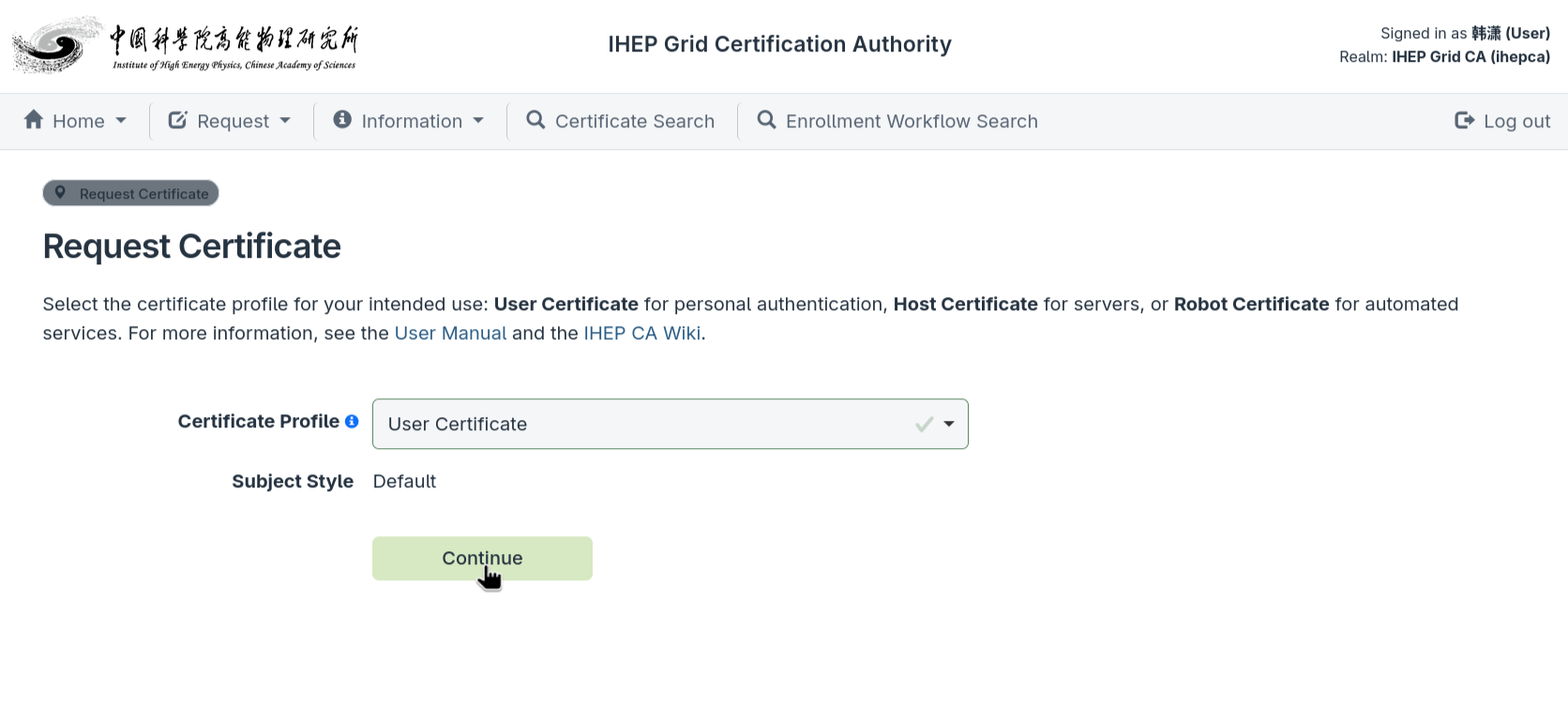
InSelect Profile, chooseUser Certificate(the default) and clickContinue.
A user certificate needs theEnglish namefor the certificate plus the correctorganization and unit; fill in theEdit Subjectpage:

- First name / Last name: the ASCII name for the certificate (e.g.
Xiao/Han). Only letters, spaces, dots, hyphens and apostrophes are accepted; if LDAP returns a Chinese name, enter the English spelling you use long-term and keep it identical across renewals. - Username: pre-filled from LDAP and cannot be modified.
- Organization Unit / Organization: choose your unit and organization from the dropdowns; required at first application.
- SAN Email: provided by LDAP; no need to fill in or modify.Username, LDAP email and the hidden SAN email are identity-binding fields and cannot be changed by editing the page.
- First name / Last name: the ASCII name for the certificate (e.g.
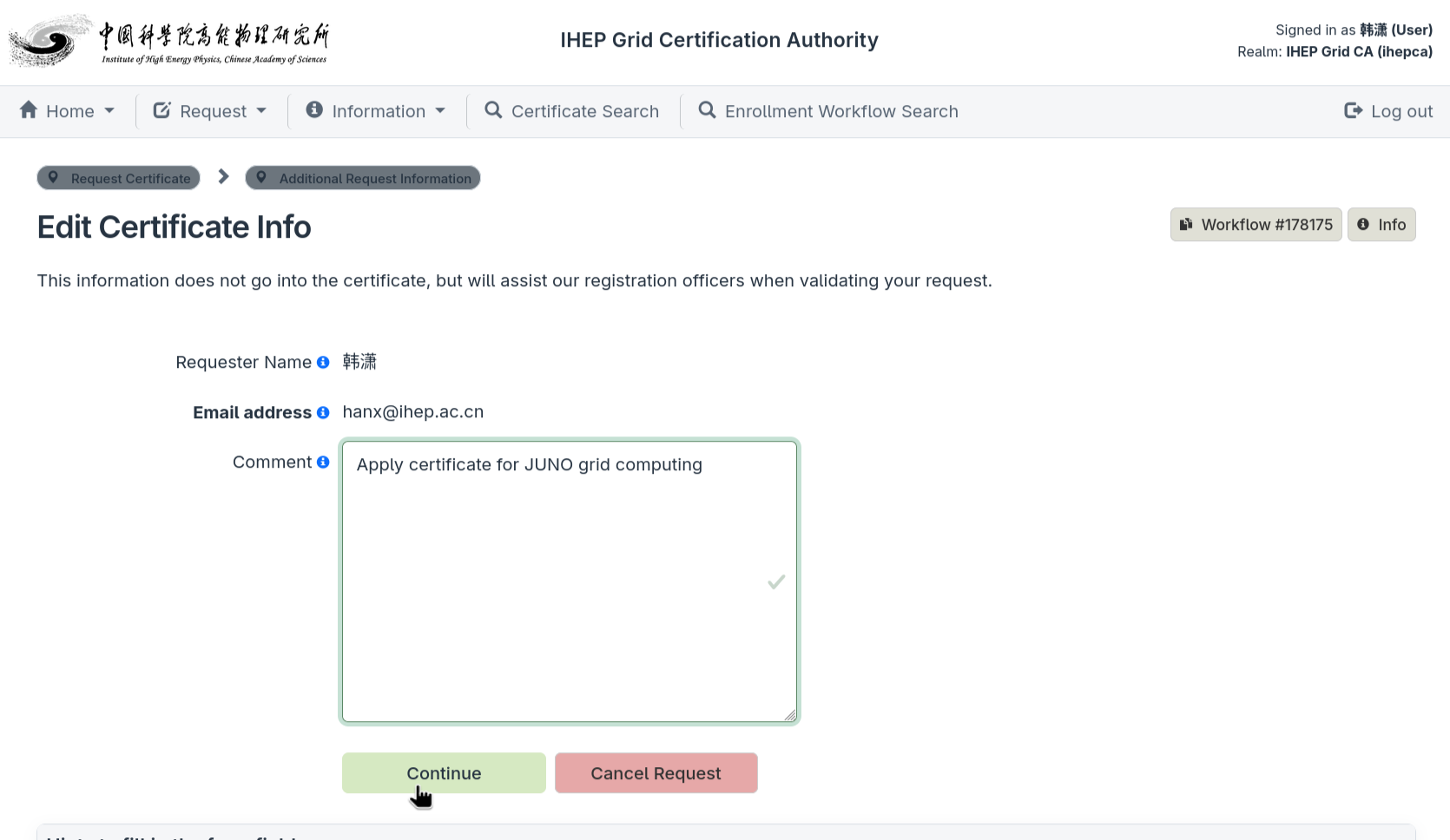
ClickContinue. On theEdit Certificate Infopage check that theEmail addressis the LDAP email (used for certificate ownership and notifications) andRequesteris the applicant; fill in theCommentwith the reason for the application, stating the purpose of the certificate.Never put passwords or key material in it:
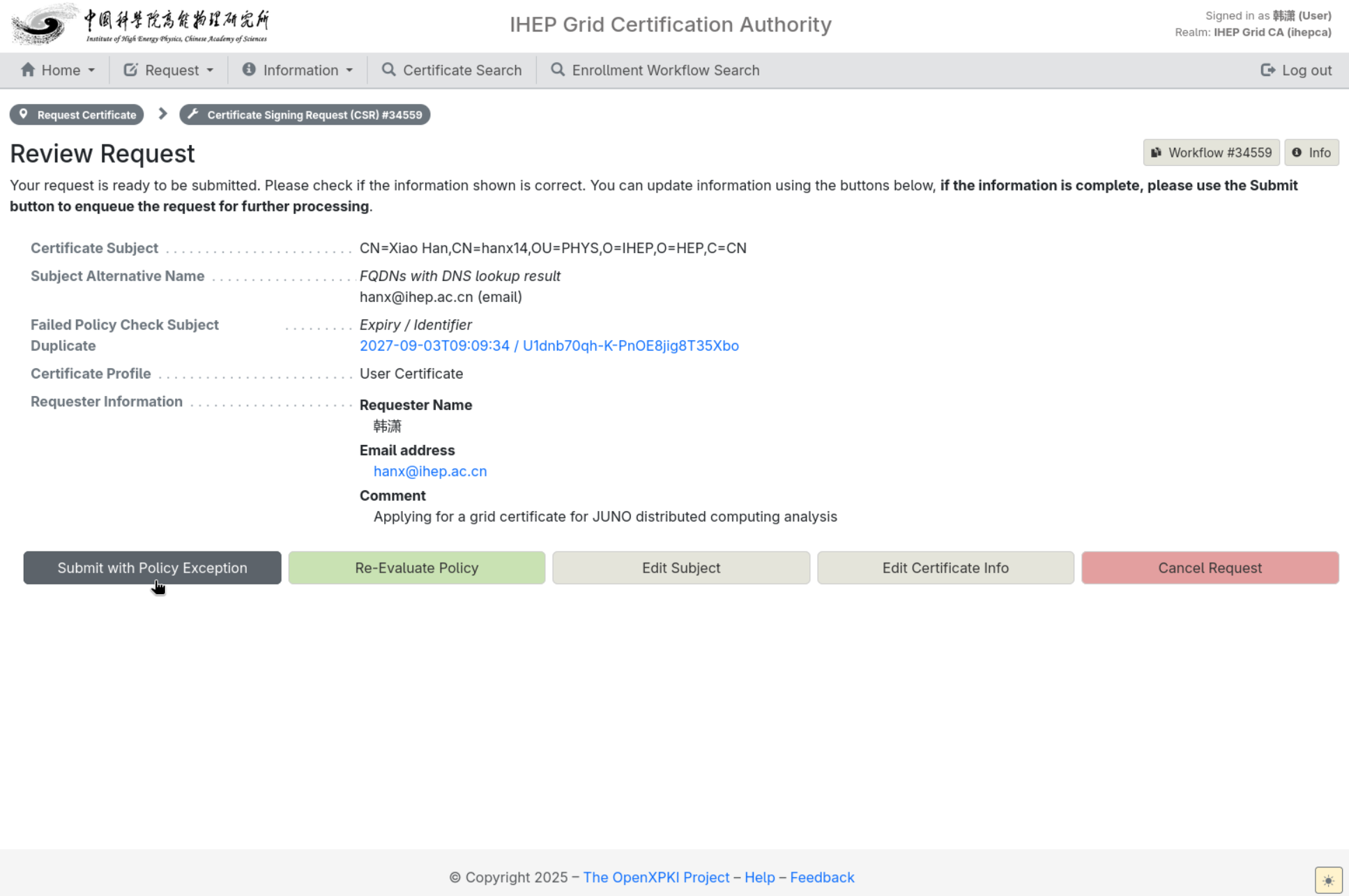
ClickContinueto reach theReview Requestpage. CheckCertificate Subject,Subject Alternative Name,Certificate ProfileandRequester Information; if something is wrong, useEdit SubjectorEdit Certificate Infoto go back, and when everything is correct clickSubmit request:

If aDuplicate(Failed Policy Check) is reported, a duplicate request already exists. ClickSubmit with Policy Exceptionon theReview Requestpage:
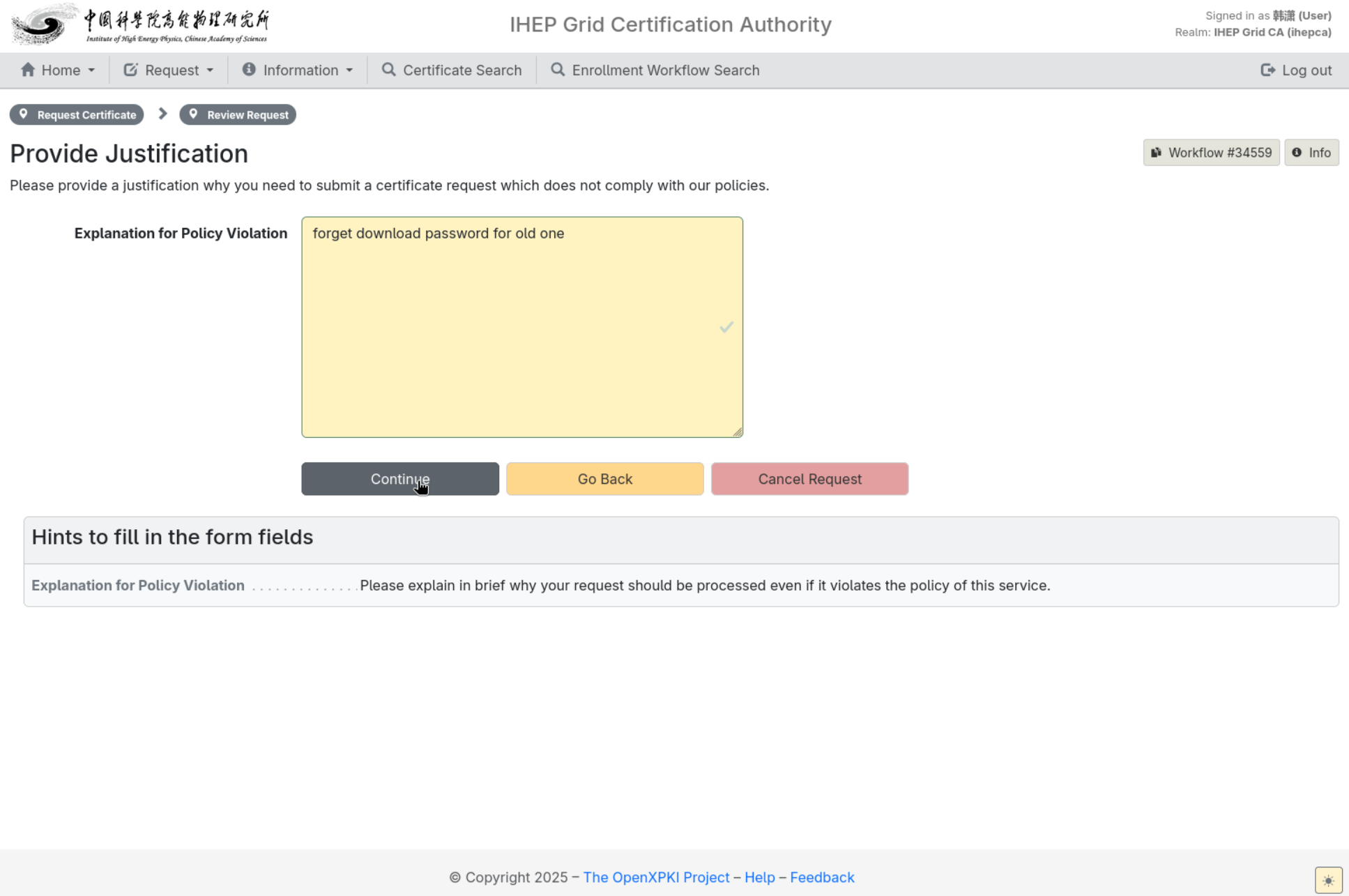
Then on theProvide Justificationpage, fill in theExplanation for Policy Violationwith the reason for the duplicate request (e.g. a previous certificate's key password was lost and it must be reissued) and clickContinue:
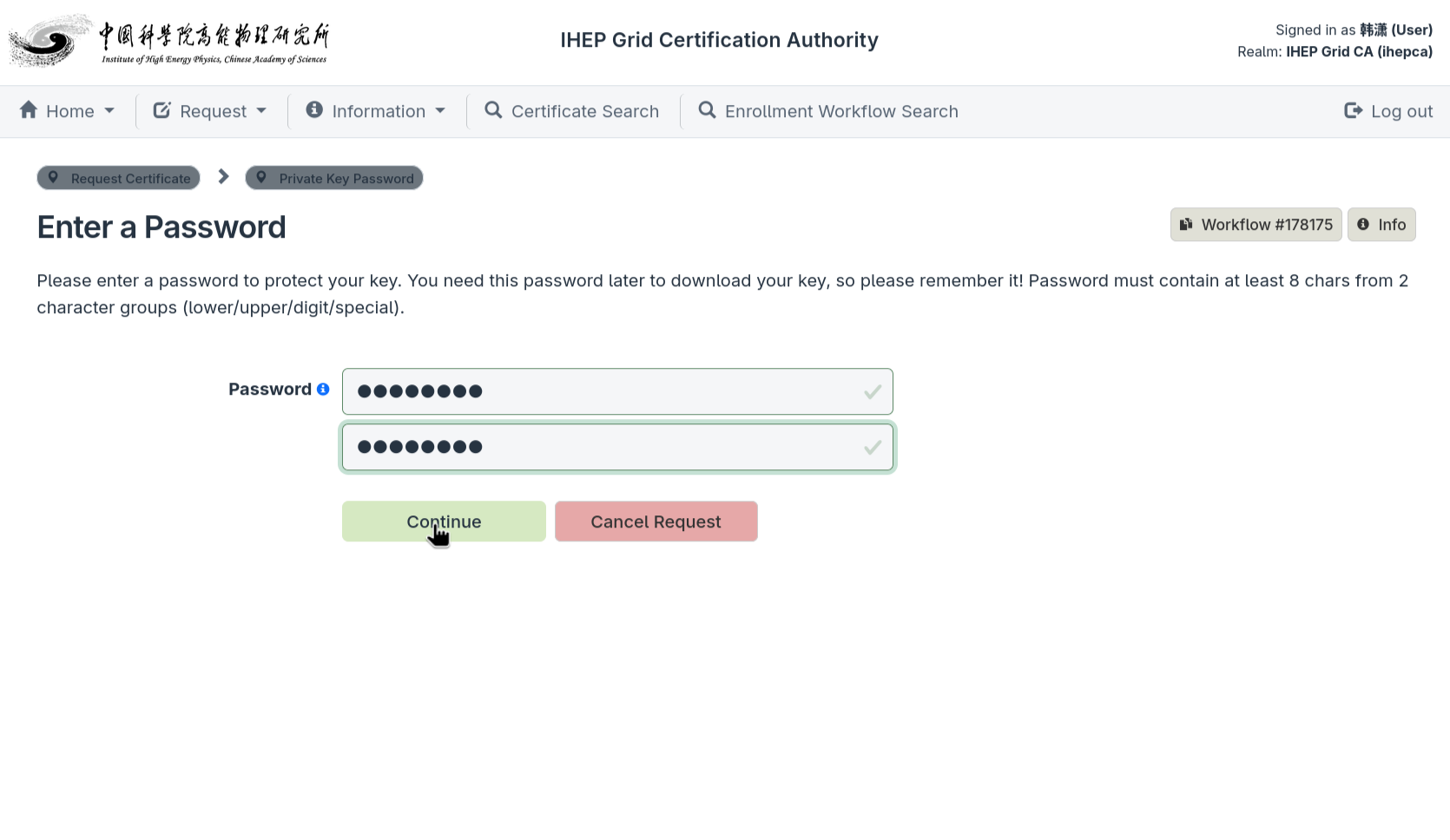
On theEnter a Password(Private Key Password) page, set theprivate key password. It protects the private key and is required when downloading the certificate — remember it. It must be at least 8 characters and contain at least two of: upper case, lower case, digits, special characters. The CA cannot recover this password.
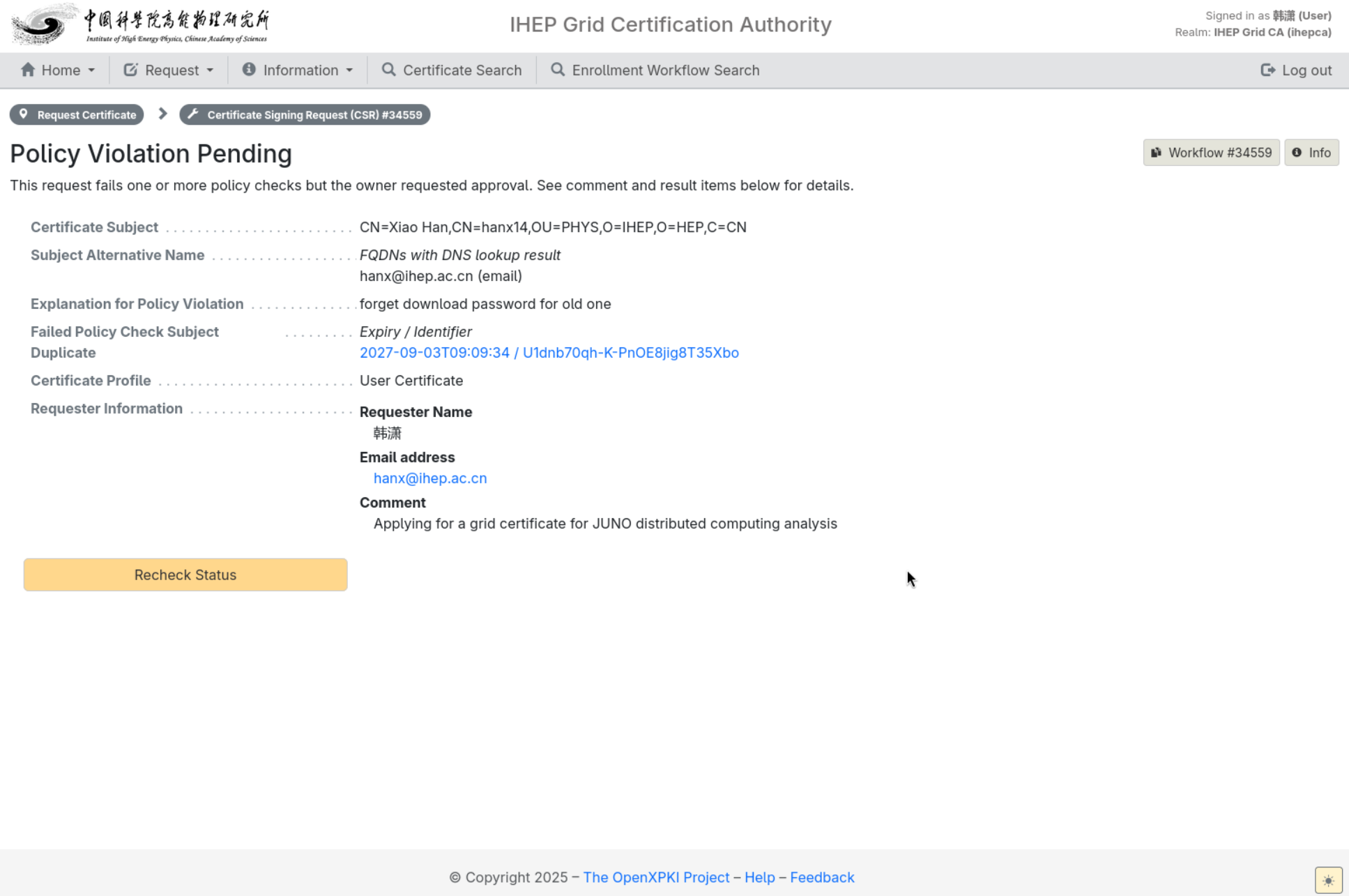
After submission the request enters pending RA review; for a policy-exception request it showsPolicy Violation Pending, where you can clickRecheck Statusto refresh:
Track the status inHome → My Workflows; once issued, the certificate also appears underHome → My Certificates.


After submission, judge the progress as follows:
| Status shown | Meaning | Next step |
|---|---|---|
PENDINGorONHOLD |
Waiting for RA review or more material | Open the workflow and read the hints; do not create duplicate requests |
SUCCESSor success page |
Issued | Go toMy Certificatesto download, verify and install |
REJECTED |
Rejected by RA | Read the review notes, fix the issues and re-apply |
FAILURE/Unexpected error |
Workflow error | Record the workflow ID and full error text; contact support |
To view a workflow: go toHome → My Workflows, click the workflow ID in the list, then readLast Update,State,Historyand any error or note shown on the page. Do not treat the browser back button as cancelling a request; use the on-pageCancelaction when you need to cancel.
Next step: download and use the certificate
After receiving the issuance email or confirming that the workflow has issued the certificate, continue to10.1.3 Download and Use Certificates. Download the.p12file, then export PEM files for Grid use or import it into your browser as needed.
FAQ
SeeFAQ.
有问题?输入后跳转到对话页继续交流